
Test Apps with ManagedApp and Blueprints
Deploy iOS and visionOS apps for development and testing that leverage the ManagedApp Framework with Jamf blueprints and Custom Declarations
Overview
Developers that adopt Apple’s ManagedApp Framework within their apps can test their app with Jamf Pro during development, before releasing the app to the App Store for distribution. Blueprints in Jamf Pro can be used to deploy Custom Declaration components that can deploy configurations and secrets such as credentials and identity certificates that can be read and used by apps built to leverage ManagedApp capabilities.
NoteThe purpose of this guide is to allow app developers to use device management and blueprints for proof of concept testing during the development and testing phases of an app that has not yet been distributed through the App Store. Using this guide requires self hosting of apps and asset files to use during testing, and it is not recommended to use production identity credentials if they are publicly accessible.
This guide will be updated as feature availability continues to be added to blueprints, such as custom asset hosting and variable substitution capabilities. Consider testing your app's capabilities to work with newer options such as certificate and credential delivery and usage when installed with device management.
About the ManagedApp Framework
Apple’s ManagedApp Framework for iOS and visionOS apps allows for a new type of managed app, where secrets such as identities, certificates, and other credentials can be securely delivered by a device management service such as Jamf Pro. This allows for enhanced and simplified end user experience with your app in managed environments, where an organization can securely provision a credential with an application, allowing for automatic user sign in to the app, as an example.
The app developer must explicitly build their app to support these frameworks for iOS 18.4 or visionOS 2.4 or later, and the app’s configuration and credential assets must be deployed via Declarative Device Management (DDM) to allow the app to read the deployed secrets.
The following types of secrets and credentials can be deployed as asset declarations for an app to access and read:
- ACME certificate (with potential usage of hardware-bound private keys and ACME-DA for Apple-attested device attributes included with the certificate request)
- SCEP certificate
- PKCS #12 certificate
- PKCS #1 or PEM encoded certificate
- Username and Password credential
For more information see Apple documentation and video resources:
- ManagedApp | Apple Developer Documentation
- Get to know the ManagedApp Framework - WWDC25 - Videos - Apple Developer
Requirements
- Target device(s) for testing that are running iOS 18.4 or later, or visionOS 2.4 or later, that have their UUID(s) registered in your Apple Developer account.
- Self-hosted app .ipa file with ManagedApp Framework support
- A manifest.plist file created and self-hosted to use for enterprise distribution and installation
- Self-hosted asset files that can define credential requests or AppConfig data
- Jamf Pro hosted in Jamf Cloud, with Jamf Account SSO (OIDC) enabled to use Blueprints
- See documentation for more information about enabling Jamf Account SSO authentication in Jamf Pro
Prepare your app and assets for self-hosting
Before deploying declarations with blueprints in Jamf, testing resources like your .ipa file and credential assets for testing need to be prepared and hosted so testing device targets can access and install these resources using the Managed App framework and DDM.
NoteSelf-hosted .ipa files, manifest.plist files, and asset files must be at a location that begins with
https://and the content-type metadata for each file must match the expected file types, such as:
- .ipa files -
application/octet-stream- .plist files -
application/plistorapplication/xml- JSON asset files -
application/json
Build your app with an ad-hoc provisioning profile for registered devices in your Developer Account
This guide presumes that the .ipa file built for testing contains an embedded provisioning profile which includes the unique device identifiers (UDIDs) of testing devices registered with the Apple for the developer. For more information, see the following article:
Distributing your app to registered devices | Apple Developer Documentation
Additional documentation from Apple can be found at the Create a Custom Distribution section of the Distributing your app for beta testing and releases article.
For example, in Xcode you can navigate to the Window menu > Organizer > Select Archive > Distribute App > Select Custom > Pick Release Testing > Select Team > check "include manifest for over-the-air installation" > fill in URLs > Automatically manage signing
Prepare your app for Enterprise App distribution
While an app is in testing phases, deploying it independently from App Store distribution is desired for rapid iteration during testing, using a process similar to in-house apps built using the Apple Developer Enterprise Program, however a developer does not need to be a member of that program. This ad hoc distribution process can install an app using an .ipa file that has an embedded provisioning profile for testing devices as noted in the previous step.
Distribution via an app.managed declaration requires the hosting of an app manifest.plist file which contains instructions for downloading the .ipa file for the app. The target testing device needs to be able to access both the hosted .plist file and the .ipa file in order to install successfully.
The contents of the app manifest should look similar to this example:
<?xml version="1.0" encoding="UTF-8"?>
<!DOCTYPE plist PUBLIC "-//Apple//DTD PLIST 1.0//EN" "http://www.apple.com/DTDs/PropertyList-1.0.dtd">
<plist version="1.0">
<dict>
	<key>items</key>
	<array>
		<dict>
			<key>assets</key>
			<array>
				<dict>
					<key>kind</key>
					<string>software-package</string>
					<key>url</key>
					<string>https://your-hosting-URL.com/YourApp.ipa</string>
				</dict>
				<dict>
					<key>kind</key>
					<string>display-image</string>
					<key>url</key>
					<string>https://your-hosting-URL.com/YourApp.png</string>
				</dict>
				<dict>
					<key>kind</key>
					<string>full-size-image</string>
					<key>url</key>
					<string>https://your-hosting-URL.com/YourApp_background.png</string>
				</dict>
			</array>
			<key>metadata</key>
			<dict>
				<key>bundle-identifier</key>
				<string>com.yourorg.yourapp</string>
				<key>bundle-version</key>
				<string>1.0</string>
				<key>kind</key>
				<string>software</string>
				<key>platform-identifier</key>
				<string>com.apple.platform.iphoneos</string>
				<key>title</key>
				<string>YourApp</string>
			</dict>
		</dict>
	</array>
</dict>
</plist>
Build and host a credential asset for deploying secrets to your app (optional)
Credentials for testing require your organization to host a JSON file that is accessible to your test devices. The contents and format requirements of these credential files is outlined in Apple’s Github repository for device management. Note that $VARIABLE substitution is not supported when self-hosting credential assets for testing deployment.
Below is an example ACME credential:
{
  "Subject": [
    [
      [
        "CN",
        "SERIALNUMBER"
      ]
    ]
  ],
  "Attest": true,
  "DirectoryURL": "https://your-acme-ca.org/acme/acme-da/directory",
  "KeySize": 384,
  "HardwareBound": true,
  "KeyType": "ECSECPrimeRandom",
  "ExtendedKeyUsage": [
    "1.3.6.1.5.5.7.3.2"
  ],
  "ClientIdentifier": "SERIALNUMBER"
}
Below is an example SCEP credential:
{
  "URL": "https://your-scep-ca.org/pki/scep",
  "Name": "Your SCEP Identity",
  "Challenge": "2791b3f40ff00b57e7c8b959a92cd217",
  "KeyType": "RSA",
  "Keysize": 2048,
  "KeyUsage": 5,
  "Retries": 3,
  "RetryDelay": 10,
  "Subject": [
    [
      [
        "CN",
        "Jamf-iOS-App-Identity"
      ]
    ]
  ]
}
Build and host a data asset for AppConfig (optional)
If your app uses custom settings, the ManagedApp Framework allows for key/value pairs to be defined in a .plist XML file. This file must be self-hosted to test in a Custom Declaration for app.managed with blueprints. If your app requires AppConfig to define device hardware identifiers, consider hard-coding the identifier values for your test device into your .plist file, as $VARIABLE substitution is not supported in this context.
Below is an example of an AppConfig.plist file:
<?xml version="1.0" encoding="UTF-8"?>
<!DOCTYPE plist PUBLIC "-//Apple//DTD PLIST 1.0//EN" "http://www.apple.com/DTDs/PropertyList-1.0.dtd">
<plist version="1.0">
<dict>
    <!-- The welcome message to display in the app -->
    <key>welcomeMessage</key>
    <string>Welcome from your MDM server!</string>

    <!-- Whether a specific feature is enabled or not -->
    <key>isFeatureEnabled</key>
    <true/>

    <!-- The maximum number of items allowed -->
    <key>maxItems</key>
    <integer>15</integer>
</dict>
</plist>
Deploy a Custom Declaration in Jamf blueprints to include both an app.managed configuration and associated Credential or Data assets
app.managed configuration and associated Credential or Data assetsThe Custom Declaration component in blueprints supports the creation and deployment of both Asset and Configuration types of declarations. The blueprints service assigns unique identifiers to each declaration object, and these identifiers can be included and defined with a variable substitution within a configuration to reference associated assets.
For more information, see current product documentation: Creating a Custom Declaration Blueprint.
When deploying an app.managed declaration and a credential asset, the app.managed configuration must reference an asset’s unique identifier within its JSON payload. Jamf blueprints allows for the use of the variable $PAYLOAD_# to represent the asset, where the number used in the variable is relative to the asset’s placement and object order within the custom declaration.
For example, if the asset is configured as the second declaration payload object, the variable would read as $PAYLOAD_2 within the configuration.
Consider the following example of deploying an app.managed configuration which references an ACME credential:
| Payload 1 | Value |
|---|---|
| Kind | Configuration |
| Channel | System |
| Type | com.apple.configuration.app.managed |
{
  "AppConfig": {
    "Identities": [
      {
        "Identifier": "device-identity",
        "AssetReference": "$PAYLOAD_2"
      }
    ]
  },
  "ManifestURL": "https://s3.us-west-2.amazonaws.com/your_bucket/app_manifest.plist",
  "InstallBehavior": {
    "Install": "Required"
  }
}| Payload 2 | Value |
|---|---|
| Kind | Asset |
| Channel | System |
| Type | com.apple.asset.credential.acme |
{
  "Reference": {
    "DataURL": "https://your_bucket.s3.us-east-2.amazonaws.com/Acme.json",
    "ContentType": "application/json"
  }
}
Example in Blueprints when saved:
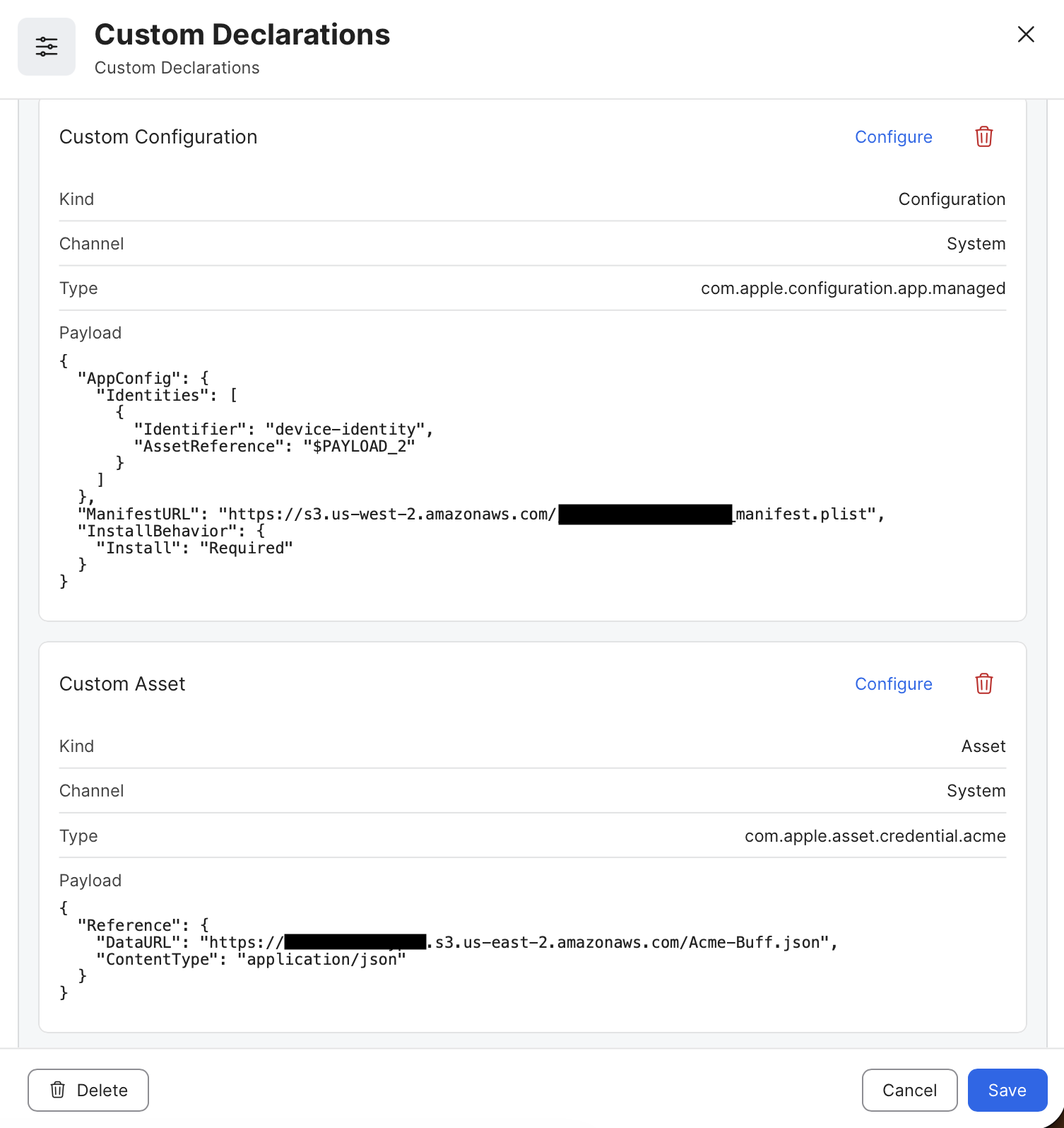
After building the Custom Declaration, select a Smart or Static Group to target the Scope, then press the Deploy button to initiate sending it to target devices.
Verify declaration installation status via the Jamf Pro API
Once the blueprint is deployed to a target group, the blueprints interface will make live updates to show deployed, pending, or failed status. When a custom declaration shows as “failed,” it can be for a number of reasons, including the following:
- Invalid JSON configuration and formatting of the configuration or asset
- Inability to retrieve or install the app using the supplied manifest.plist
- Invalid content-type metadata headers for hosted assets or manifest files
Nuanced error information is sent autonomously by target devices using the declarative device management Status Channel, and this data – including full status channel reports – can be retrieved from the Jamf Pro API for your test device.
Use the endpoint located at this location to retrieve status channel data. https://yourServer.jamfcloud.com/api/v1/ddm/\{clientManagementId}/status-items
https://developer.jamf.com/jamf-pro/reference/get_v1-ddm-clientmanagementid-status-items
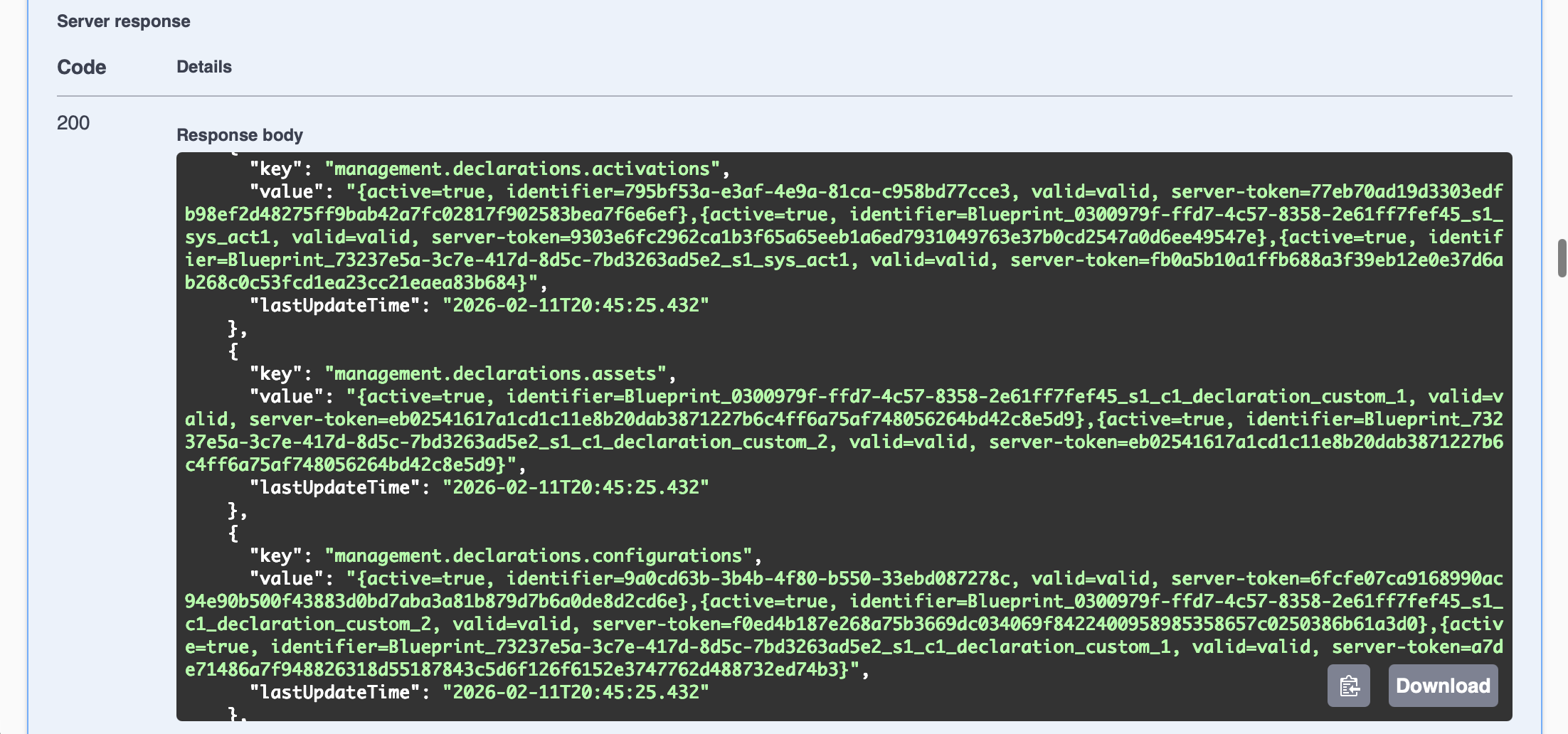
The relevant Reasons message for any failed declarations will show in one of the following sections of the status report:
"management.declarations.assets""management.declarations.configurations"
Successfully installed and activated declarations should have a status that includes active=true and valid=valid within the report sent by the device.
Use the Jamf Pro API documentation page for a simplified status query
The Jamf Pro API has a documentation page which allows you to query and GET a managed device’s status report to view specific error messages during troubleshooting. This page is accessible at https://yourServer.jamfcloud.com/api/doc and DDM status reports can be viewed with the following steps:
- Navigate to the page in your web browser
- Authenticate with a local Jamf Pro User or Client ID and Secret, then click Authorize button to receive a token
- When successfully authenticated, this message will appear:
Authorized. Token successfully generated! - Expand the
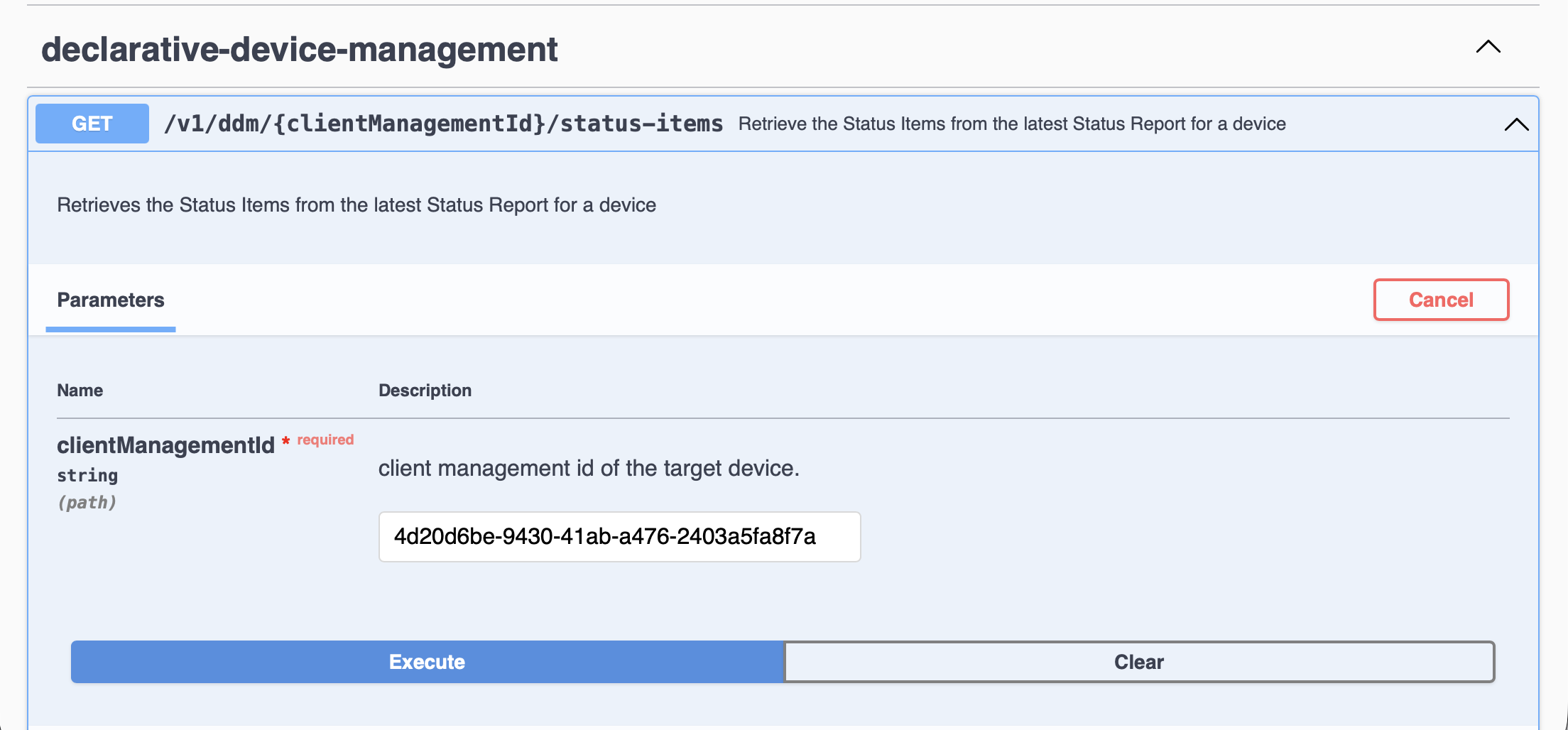
declarative-device-managementobject by clicking the disclosure triangle to its right, then expand theGETobject for/v1/ddm/{clientManagementId}/status-items - Click the
Try it outbutton - Enter the
clientManagementIdof your test device, then click Execute- The
clientManagementIdof your device can be obtained from the General category of the device’s inventory record in Jamf Pro, labeled there as Jamf Pro Management ID:
- The
The server should respond with a 200 message and a full status report, such as shown in the example below:
Best practices for testing
Below are several tips to help test individual components without needing to troubleshoot an error of a combined Configuration and Asset declarations and their dependencies.
Install any required Root CA or Intermediate CA certificates via a configuration profile before installing credential assets
To establish trust for the certificate authority used to issue identity credentials, you may need to install the chain of trust on the testing device before installing credential assets that request SCEP or ACME certificates. While this could be done using a certificate asset declaration, it may be easier for testing to install these certificates using a Configuration Profile with a Certificate payload from Jamf Pro.
Consider testing asset validation independently of the app.managed configuration
Successfully deployed app.managed configurations and their associated asset declarations relies on the target device being able to install and activate both components simultaneously. For example, if there is an error in how the asset was designed, it can make both it and the app.managed configuration to present themselves as failed or invalid via the DDM status channel responses.
An asset declaration cannot be validated on its own if it’s not reference properly from a configuration, which can make it difficult to assess whether a credential asset was configured correctly for a certificate request. To simplify this verification, consider deploying a com.apple.configuration.security.identity configuration which references the credential asset.
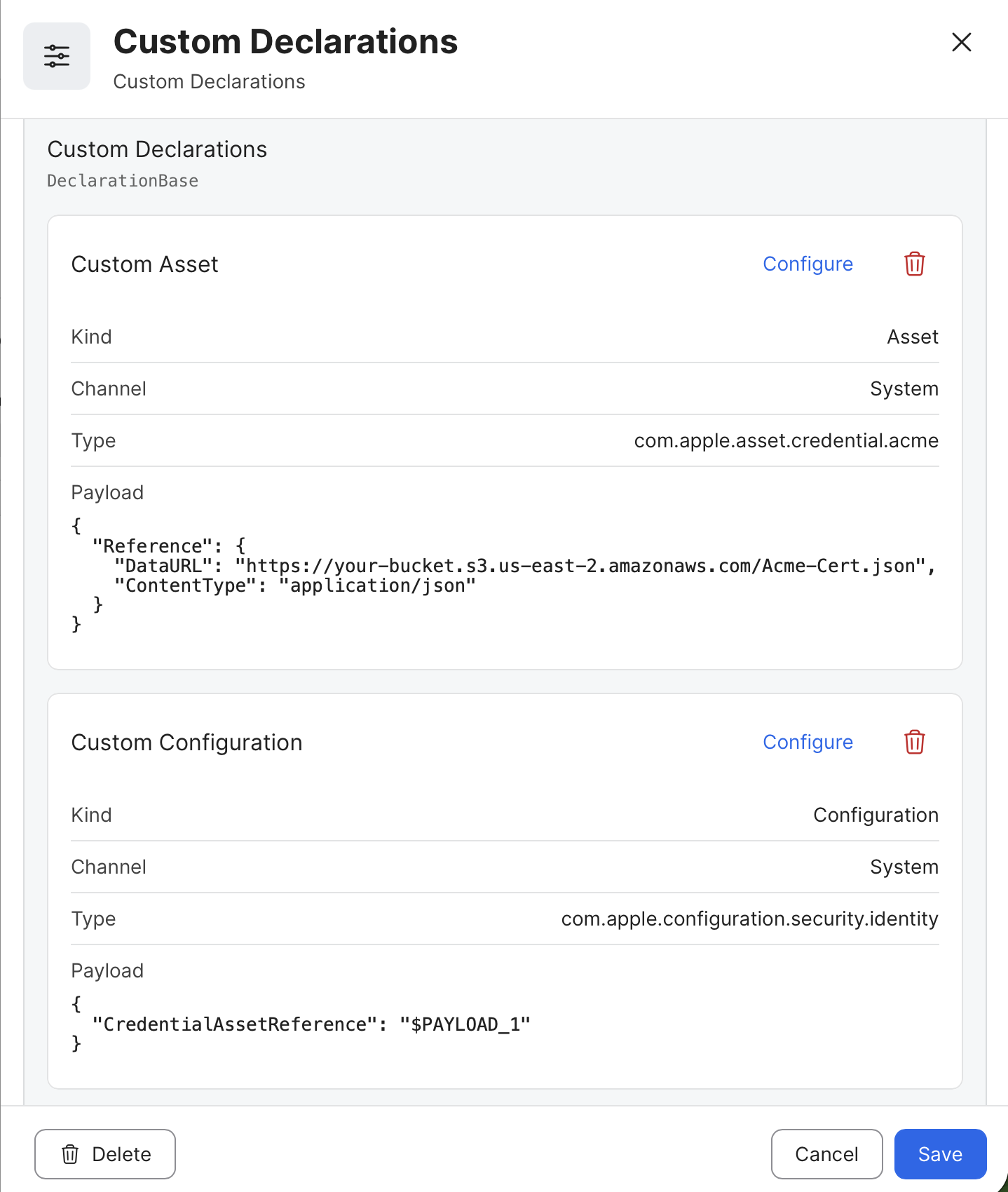
Example of Identity configuration referencing an ACME asset
Once the certificate is installed successfully, this configuration and certificate information can be observed on the managed device in the Settings app. Navigate to: General > VPN & Device Management > MDM Profile > Configurations > Certificates to view the certificate.
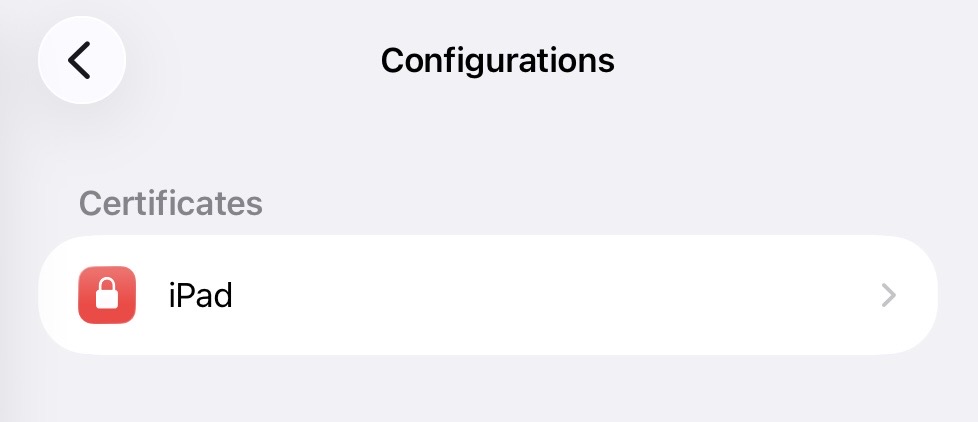
Example of certificate within Device Management Configurations
Consider testing your application’s manifest.plist in a simplified app.managed configuration
Confirming that your app can be deployed using your hosted manifest with a simple app.managed configuration allows you to confirm it is configured and hosted correctly. This can be done as a test before adding more complex settings and related assets to your configuration.
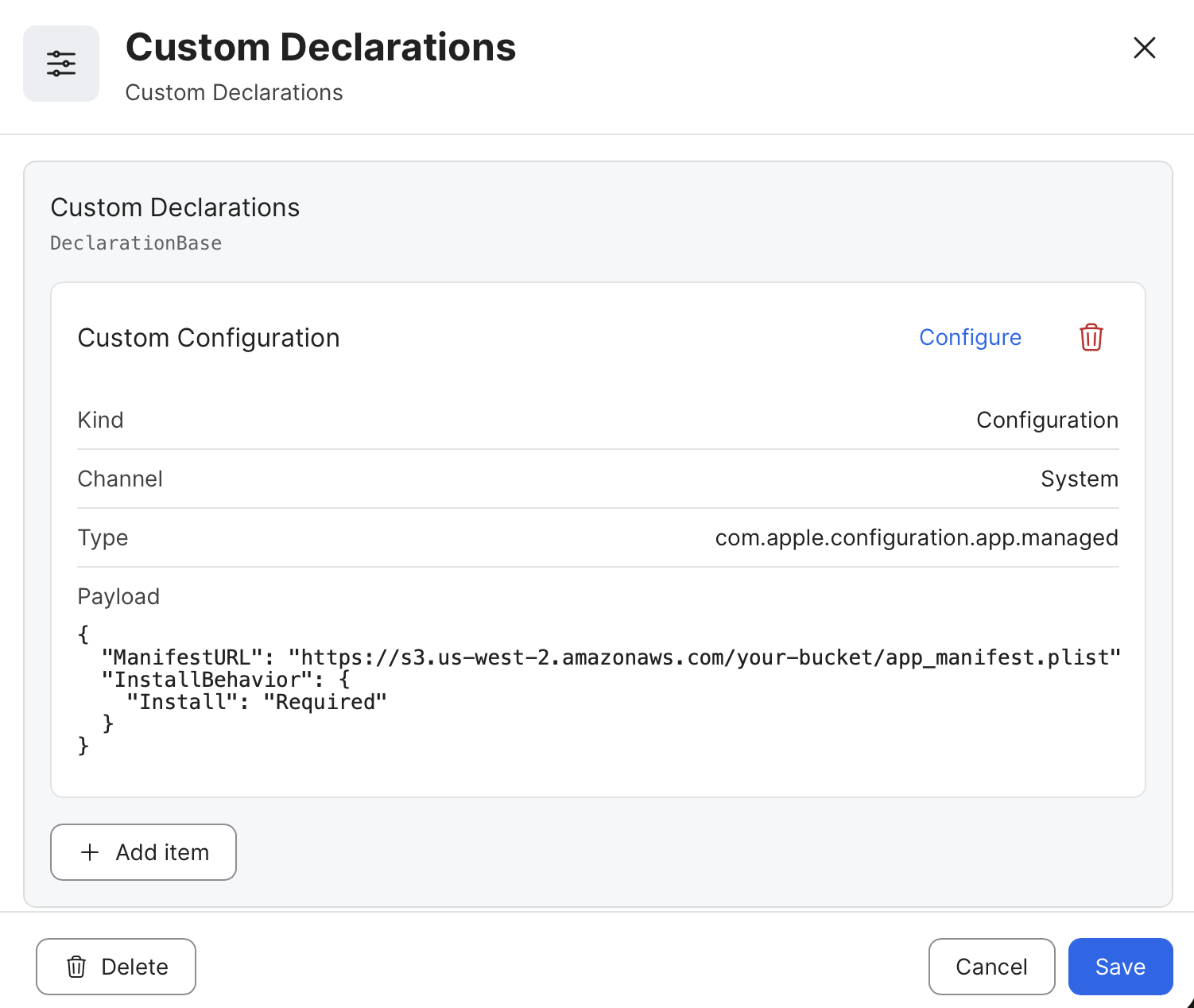
Example app.managed declaration with a simple configuration
Updated 8 months ago